

tech
Streamlit: the fastest path from a Python script to a live data app
Streamlit turns plain Python scripts into interactive web apps without writing a single line of HTML, CSS, or JavaScript. Here is an exhaustive tour: how its rerun architecture works, every widget type, caching and session state, multi-page apps, custom components, theming, deployment, security, and how it compares to Dash, Gradio, and Panel.
AI-generated draft · reviewed and editedThis text was generated with AI as a first draft, then reviewed and edited by the author, who holds editorial responsibility for it.

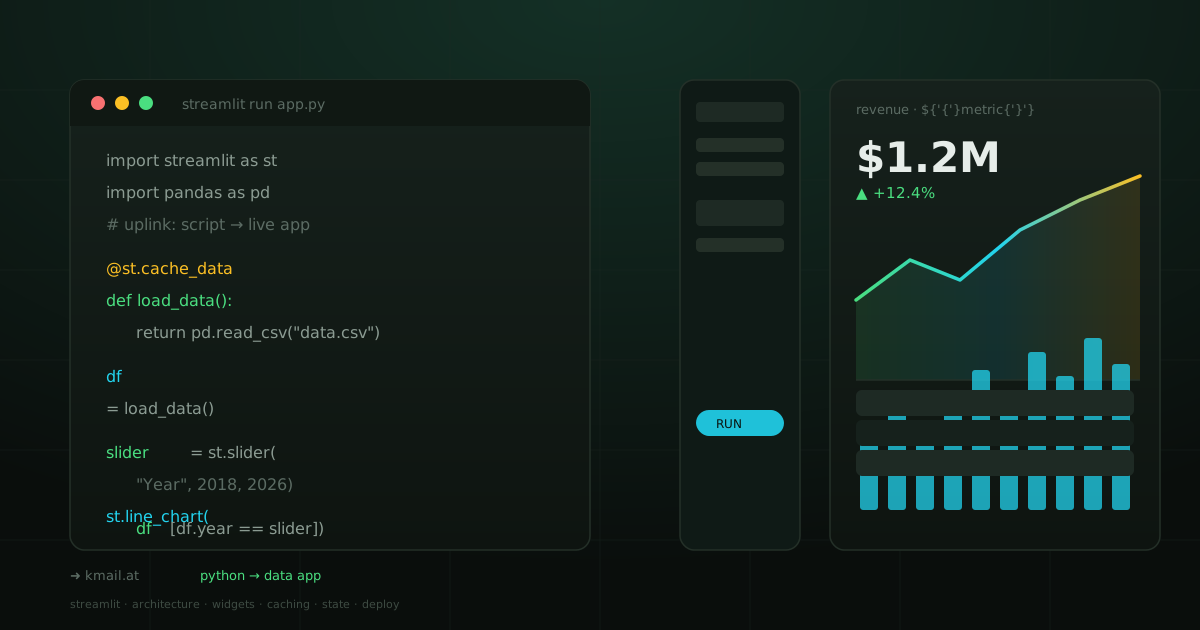
Streamlit: the fastest path from a Python script to a live data app
Every data scientist, ML engineer, and analyst hits the same wall at some point: you have a Python script that produces something useful — a model prediction, a cleaned dataset, a chart — but nobody else can use it. The script lives on your laptop. Your manager does not have Python installed. Your client wants a URL they can open in a browser. The traditional solutions are painful: learn React, wire up a Flask API, deploy a Vue frontend, fight with CSS. Streamlit exists to make all of that disappear.
Streamlit is an open-source Python framework that lets you turn data scripts into shareable web apps in minutes — with no frontend experience required. Write Python, get a web app. That is the entire value proposition.
This article is a comprehensive, opinionated tour of everything Streamlit offers: the execution model that makes it unique, every major widget and layout primitive, caching and state management, multi-page apps, custom components, theming, security, deployment, and a realistic comparison against the alternatives. If you are evaluating Streamlit for a project, this should be the last guide you need.
What Streamlit actually is (and what it is not)
Streamlit is a script-first reactive framework for building data web apps. You write a Python script top-to-bottom, and Streamlit turns each line into a browser element. There is no HTML template, no CSS file, no JavaScript bundle to manage. The script is the app.
Streamlit is:
- Open source. Apache 2.0 license. Free forever for any use case.
- Pure Python. No JavaScript, HTML, or CSS knowledge required.
- Hot-reloading. Save your script and the browser updates in real time.
- Shareable. Deploy to Streamlit Community Cloud with one click, or host anywhere with Docker.
Streamlit is not a general-purpose web framework. You would not build a full-stack SaaS product with it. It is specifically designed for data-centric interactive apps — dashboards, model demos, data explorers, reporting tools, internal utilities. If your primary output is JavaScript-heavy UI, you want something else.
Getting started: installation and your first app
Installation is one command:
pip install streamlitCreate a file called app.py:
import streamlit as st

st.title("My first Streamlit app")
name = st.text_input("What is your name?")
if name:
    st.write(f"Hello, {name}! 👋")

number = st.slider("Pick a number", 0, 100, 50)
st.write(f"You chose: {number}")
Run it:
streamlit run app.pyYour browser opens at http://localhost:8501 with a live, interactive app. Change a slider, and the page re-renders instantly. Every element on screen was produced by that tiny script. That is the entire development loop — edit, save, see.
The execution model: why Streamlit works differently
This is the single most important concept in Streamlit, and the reason it behaves unlike any other web framework you have used. When a user interacts with a widget — types text, clicks a button, moves a slider — Streamlit does not call a handler function. It reruns the entire script from top to bottom.
Every interaction triggers a full script rerun. Your script is the app. There is no callback, no event loop, no virtual DOM. The script runs from line one to the end, and whatever it outputs is what the user sees.
This design has three consequences that matter:
- Deterministic rendering. The UI is always a faithful reflection of the script's current state. There is no "stale view" problem — what you see is what the script just produced.
- Widget values persist across reruns. Streamlit automatically tracks which widget produced what value, so a slider remembers its position between reruns without you writing any state-management code.
- Performance requires explicit caching. Because the whole script runs on every interaction, expensive operations (database queries, model inference, large file reads) will re-execute on every rerun unless you explicitly cache them. This is the one area where Streamlit demands deliberate thought.
Every widget type: inputs, outputs, and interactive elements
Streamlit ships a large library of built-in widgets. Every widget is a function call — no configuration objects, no component lifecycle. Here is the full inventory, grouped by purpose:
Text and number inputs
st.text_input(label)— single-line text field. Returns a string.st.text_area(label)— multi-line text area. Useful for long-form input.st.number_input(label, min_val, max_val)— numeric input with stepper arrows and min/max bounds.st.password_input(label)— text input that masks the characters (replaced the oldtype="password"parameter).
Sliders, selectors, and date pickers
st.slider(label, min, max, value)— single value slider orst.slider(label, min, max, value=(low, high))for a range slider.st.select_slider(label, options)— slider with discrete options instead of numeric values.st.selectbox(label, options)— dropdown selector. Returns the selected value.st.multiselect(label, options)— multi-select dropdown. Returns a list.st.radio(label, options)— radio button group.st.checkbox(label)— single checkbox. ReturnsTrueorFalse.st.date_input(label)— date picker.st.time_input(label)— time picker.
File upload and media
st.file_uploader(label, type)— drag-and-drop file upload. Acceptstypefilter (e.g.["csv", "xlsx"]).st.camera_input(label)— capture an image from the user's webcam.st.audio(data)— embed an audio player.st.video(data)— embed a video player.st.image(image)— display an image from a file path, URL, NumPy array, or PIL Image.
Buttons, forms, and execution control
st.button(label)— click button. ReturnsTrueonly on the rerun immediately after the click (Truefor one rerun).st.form_submit_button(label)— submit button inside a form (widgets inside a form only submit together).st.form(key)— groups widgets so they only rerun the script when submitted, not on every keystroke.st.download_button(label, data, file_name)— presents a download link for data (string, bytes, or file).st.link_button(label, url)— renders an external hyperlink as a button.st.toggle(label)— on/off toggle. Like a checkbox but visually a switch.st.popover(label)— a button that opens a small popover panel with content inside.
The st.form() is particularly important for UX: without it, every keystroke in a text input triggers a full script rerun. Wrapping a group of inputs in a form defers the rerun until the user clicks the submit button, dramatically reducing server load and improving responsiveness.
Output and data display
st.dataframe(df)— interactive table with sorting, filtering, search, and column resizing. Supports Pandas, Polars, and Arrow.st.data_editor(df)— editable version ofst.dataframe. Users can add/delete/reorder rows, edit cells, and insert columns. Returns the edited dataframe.st.table(df)— static, non-interactive table (rarely used in practice).st.metric(label, value, delta)— big number card with optional delta indicator. Designed for KPI dashboards.st.json(obj)— pretty-printed, collapsible JSON tree.st.code(code, language)— syntax-highlighted code block with a copy button.st.latex(expr)— renders LaTeX mathematical expressions.st.progress(value)— progress bar.st.status(label, state)— expandable status container with"running","complete", or"error"states.st.toast(message)— ephemeral toast notification (no page layout disruption).st.balloons()— celebratory balloon animation. Yes, really.st.snow()— snowflakes. For the holidays.
Native charting
Streamlit has built-in wrappers for the most popular Python charting libraries:
st.line_chart(df)— line chart powered by Apache ECharts.st.area_chart(df)— stacked area chart.st.bar_chart(df)— bar chart.st.scatter_chart(df)— scatter plot.st.map(df)— geographic map (latitude/longitude columns auto-detected). Uses Deck.gl.- Third-party libraries work seamlessly:
st.pyplot(fig)for Matplotlib,st.plotly_chart(fig)for Plotly,st.bokeh_chart(fig)for Bokeh,st.altair_chart(chart)for Altair.
Layout: columns, sidebar, tabs, and containers
Streamlit gives you several layout primitives to organize content beyond the default single-column layout:
st.sidebar— a permanent sidebar panel on the left. Any widget placed here is separate from the main content area. This is where most apps put filters and configuration.col1, col2, col3 = st.columns(3)— splits the page into columns (any number). Widths can be adjusted with theratioparameter (e.g.st.columns([2, 1, 1])for a 50-25-25 split).st.tabs(["A", "B", "C"])— tabbed layout. Each tab is a context manager: content written inside a tab only appears in that tab.st.expander("Details")— collapsible section. Hidden by default, expands on click.st.container()— invisible grouping container. Useful for conditional rendering or applying styles to a group of elements.st.empty()— a placeholder that can be overwritten. Callplaceholder.empty()to clear it, orplaceholder.write("new")to replace its contents.st.columns(spec, vertical_alignment)— supportsvertical_alignment="top","center", or"bottom"to align columns vertically.st.container(border=True)— renders with a visible border, useful for creating card-like sections.
Additional layout helpers include st.divider() (horizontal rule), st.caption(text) (small muted text), st.markdown(text) (full Markdown support including headers, bold, italic, links, and even HTML with unsafe_allow_html=True).
Styling and custom CSS
Streamlit has a default look that is clean but not customizable through API parameters. To override it, you inject custom CSS:
st.markdown(
    """
    <style>
    .stApp { background-color: #0e1117; }
    h1 { color: #00d4aa; }
    </style>
    """,
    unsafe_allow_html=True,
)
For deeper theming, Streamlit supports a .streamlit/config.toml file that controls the theme globally:
[theme]
primaryColor = "#00d4aa"
backgroundColor = "#0e1117"
secondaryBackgroundColor = "#1a1f2e"
textColor = "#fafafa"
font = "monospace"
You can also set the base to "dark" or "light", and choose from available fonts: "sans serif", "serif", "monospace", or "sans".
Caching: st.cache_data and st.cache_resource
Because Streamlit reruns the entire script on every interaction, any expensive computation will re-execute unless you cache it. Streamlit provides two caching decorators, and choosing the right one matters:
@st.cache_data— for functions that return serializable data (strings, numbers, DataFrames, dicts, lists). It hashes the function's arguments, runs the function once, serializes the result to disk, and returns the cached copy on subsequent calls. Each user session gets its own copy (safe from cross-session mutation).@st.cache_resource— for functions that return non-serializable objects (database connections, ML models, file handles). Returns the same object to all sessions (shared). This is the right choice for database connection pools or loaded model objects.
A common mistake: using @st.cache_data for a database connection. The connection object is not serializable and may break across sessions. Use @st.cache_resource instead.
@st.cache_data(ttl=3600)  # refresh every hour
def load_data(url: str) -> pd.DataFrame:
    return pd.read_csv(url)

@st.cache_resource
def get_db_connection():
    return sqlite3.connect("data.db")
Both decorators support a ttl parameter (time-to-live in seconds) for automatic expiration, and max_entries for bounding memory usage.
Session state: persisting data across reruns
Widget values (slider positions, text inputs) are automatically preserved across reruns — Streamlit handles that internally. But any custom variable you compute or store needs st.session_state to persist across reruns.
import streamlit as st

# Initialize
count = st.session_state.get("count", 0)

if st.button("Increment"):
    st.session_state.count = count + 1
    st.rerun()

st.write(f"Count: {st.session_state.get('count', 0)}")
Session state is a dictionary-like object scoped to each browser tab. Key properties:
- Per-session. Each browser tab has its own session state. User A's state is invisible to User B.
- Persists across reruns. Values survive until the tab is closed or the server restarts.
- Cross-page in multi-page apps. Session state is shared across all pages in a multi-page app.
- Callback support. Widgets accept an
on_changecallback that can modify session state before the rerun completes.
The pattern is simple: read from st.session_state at the top of your script, update it when events happen, and the state persists until the session ends. For multi-page apps, this is how you share data between pages.
Fragments: partial reruns for better performance
One of Streamlit's newer features (introduced in v1.33+) is the @st.fragment decorator. It lets you define a function that reruns independently from the rest of the script:
@st.fragment
def live_chart():
    chart_data = fetch_recent_data()
    st.line_chart(chart_data)

# This function reruns on its own schedule
# without triggering a full-page rerun
live_chart()

# The rest of the app stays stable
st.write("This does not rerun when the chart updates")
Fragments solve the biggest performance problem in Streamlit: in a complex dashboard, every widget interaction triggers a full rerun. With fragments, you can isolate sections that update frequently (live charts, streaming data) without rerunning the entire app. This is a significant improvement for production dashboards.
Dialogs: modal popups with @st.dialog
Streamlit's @st.dialog decorator creates modal dialogs that overlay the app:
@st.dialog("Confirm action")
def confirm_dialog(message: str):
    st.write(message)
    if st.button("OK"):
        st.session_state.confirmed = True
        st.rerun()
    if st.button("Cancel"):
        st.rerun()

if st.button("Delete file"):
    confirm_dialog("Are you sure you want to delete this file?")
Dialogs run in a separate execution context — the rest of the app continues running while the dialog is open. This is useful for confirmation flows, multi-step wizards, and any UI that requires a focused interaction.
Multi-page apps: navigation and routing
Streamlit supports multi-page apps through two mechanisms:
1. Auto-discovery (the simple way)
Create a pages/ directory in your project folder. Any Python file you put in there automatically becomes a page in a sidebar navigation menu. The filename becomes the page title (underscores are converted to spaces).
my_app/
├── app.py              # main entry point
└── pages/
    ├── 1_📊_Analytics.py
    ├── 2_📈_Forecasting.py
    └── 3_⚙️_Settings.py
2. Explicit navigation (the controlled way)
For full control over page ordering, titles, and URL paths, use st.navigation() and st.Page():
import streamlit as st

pg = st.navigation([
    st.Page("home.py", title="Home", url_path="home", default=True),
    st.Page("settings.py", title="Preferences", url_path="settings"),
    st.Page("pages/about.py", title="About Us"),
])

pg.run()
You can also use st.switch_page("pages/my_page.py") to navigate programmatically, and st.rerun() to restart the current page.
Custom components: extending Streamlit beyond its built-ins
When Streamlit's built-in widgets are not enough, you have three options:
- Third-party components. The Streamlit component ecosystem includes hundreds of community-built widgets:
streamlit-aggrid(advanced data grids),streamlit-elements(Material UI components),streamlit-ace(code editor),streamlit-extras(decorative elements, trees, mermaid diagrams, and more). - iframe injection. For quick integrations, you can embed any external web app or widget using
st.components.v1.html(iframe_code)orst.iframe(url). - Building your own. Streamlit components can be written in Python (for simple cases) or as React/TypeScript frontends with Python backends. The framework exposes
declare_componentfor Python-only components andcomponents.declare_componentfor full bidirectional communication with a React frontend.
The Streamlit community has published over 600 components on the official gallery at streamlit.io/components. If you need a specific widget, check there first.
Data connections: databases, APIs, and secrets
Streamlit provides a st.connection abstraction for managing data sources:
st.connection("sql", type=SQLConnection)— connects to any SQL database (PostgreSQL, MySQL, SQLite, BigQuery, Snowflake, Databricks).st.connection("snowflake", type=SnowflakeConnection)— native Snowflake integration.- Custom connections can be created by subclassing
st.connections.BaseConnection.
For secrets management, Streamlit reads from a .streamlit/secrets.toml file locally (gitignored by default) and from environment variables in production. Access them with st.secrets["api_key"].
# .streamlit/secrets.toml
db_password = "super-secret"
api_key = "sk-..."
On Streamlit Community Cloud, secrets are set through the web UI under "Advanced Settings" and are never exposed in your code repository.
Performance optimization: patterns that matter
The script-rerun model means that performance is the primary engineering challenge in any non-trivial Streamlit app. Here are the patterns that actually make a difference:
- Cache aggressively. Any function that reads a file, queries a database, or calls an API should be wrapped in
@st.cache_dataor@st.cache_resource. Without this, every slider movement will re-execute your data pipeline. - Use forms for batch input. Wrap multiple text inputs, sliders, and selectors in
st.form()to defer reruns until the user clicks "Submit." - Use fragments for live updates. Isolate frequently-updating sections with
@st.fragmentso they rerun independently. - Lazy-load heavy data. Do not load a 2GB dataset at the top of the script. Load it in a function, cache it, and call it only when the user actually needs it (e.g. after clicking a button).
- Avoid global mutable state. Because the script reruns from scratch, any mutation of a global variable that should persist must go into
st.session_state. Otherwise the mutation is lost on the next rerun. - Use containers for conditional rendering.
st.empty()andst.container()let you show/hide entire sections without restructuring the page.
Security considerations
Streamlit apps are web applications exposed to the internet. Security is your responsibility, and several areas deserve attention:
- Client-side code is not secret. Streamlit scripts run on the server, but the rendered HTML is sent to the browser. Never embed API keys, database passwords, or secrets directly in your script. Use
st.secretsand environment variables. - Input sanitization. User input from text fields, file uploads, and widgets is untrusted. Sanitize it before using in SQL queries, shell commands, or file operations.
- Session isolation. Each browser session has its own state. One user cannot access another user's session state. But if you use
@st.cache_resource, the cached object is shared — be careful with mutable shared state. - Authentication. Streamlit does not provide built-in authentication. For public-facing apps, use reverse proxy auth (nginx + OAuth), or the third-party
streamlit-authenticatorlibrary for username/password flows. For Streamlit Community Cloud, you can restrict access by email address. - unsafe_allow_html. When using
st.markdown(..., unsafe_allow_html=True), never pass user-controlled input directly. Always sanitize it to prevent XSS attacks. - File uploads. Restrict
st.file_uploaderto specific file types and size limits. Uploaded files are stored in a temp directory — clean them up if they are sensitive.
Deployment: from localhost to production
Streamlit provides multiple deployment paths, each with different tradeoffs:
Streamlit Community Cloud (free)
The fastest path: connect a GitHub repository and deploy in seconds. Community Cloud is free for public repositories and offers one free private app. It handles HTTPS, custom domains (for paid plans), and automatic redeployment on push. Limitations: apps sleep after 15 minutes of inactivity, and resource limits (1 GB RAM, basic CPU) make it unsuitable for heavy compute.
Docker (self-hosted)
For full control, package your app in a Docker container:
# Dockerfile
FROM python:3.11-slim

WORKDIR /app
COPY requirements.txt .
RUN pip install -r requirements.txt

COPY . .
EXPOSE 8501

HEALTHCHECK CMD curl --fail http://localhost:8501/_stcore/health
ENTRYPOINT ["streamlit", "run", "app.py", \
    "--server.port=8501", \
    "--server.address=0.0.0.0"]
This gives you full control over resources, networking, and scaling. Deploy on any cloud provider (AWS ECS, Google Cloud Run, Azure Container Apps) or your own infrastructure.
Kubernetes (enterprise)
For large-scale deployments, Streamlit supports Kubernetes. Key considerations: each session requires a persistent WebSocket connection (so session affinity matters), and horizontal scaling requires a shared cache backend (Redis) if using @st.cache_data across replicas.
Other options
- Render.com — one-click deploy with a free tier, auto-sleep on inactivity.
- Hugging Face Spaces — free hosting for ML demos, supports Streamlit natively.
- AWS App Runner / Google Cloud Run — serverless containers that scale to zero when idle.
- Railway / Fly.io — platform-as-a-service with custom domain support.
The Streamlit ecosystem: libraries and tools
Streamlit's value compounds when combined with the right libraries:
- Streamlit + Polars.
st.dataframeandst.data_editorhave native Polars support — no conversion needed. For large datasets, Polars' lazy evaluation pairs perfectly with Streamlit's caching to deliver fast, interactive exploration. - Streamlit + Plotly.
st.plotly_chart(fig, use_container_width=True)renders fully interactive Plotly charts with zoom, hover, and selection — the most popular visualization choice for Streamlit dashboards. - Streamlit + LangChain / LangGraph. Streamlit is the de facto UI layer for LLM applications. The LangChain documentation uses Streamlit in most of its examples. The combination of real-time chat, session state, and streaming responses makes it a natural fit.
- Streamlit + MLflow. Track experiments in MLflow, display results in Streamlit. A common pattern for ML teams: train in MLflow, serve results through a Streamlit dashboard.
- Streamlit + PyDeck / Deck.gl.
st.map()uses Deck.gl under the hood. For custom maps, usest.pydeck_chart()directly with PyDeck layer specifications. - Streamlit + DuckDB. In-process analytical database. Run SQL queries on large datasets directly in your Streamlit app without a separate database server. Excellent for file-exploration dashboards.
- Streamlit Authenticator. Third-party library (
pip install streamlit-authenticator) that adds username/password authentication with cookie-based sessions. Popular for internal tools.
Streamlit vs. the alternatives: Dash, Gradio, Panel
Three competitors dominate the Python web-app space. Each serves a different sweet spot:
Streamlit vs. Plotly Dash
Dash (by Plotly) is the enterprise heavyweight. It uses a callback-based model — you define explicit functions that trigger when specific inputs change — rather than Streamlit's full-rerun approach. Dash gives you more control, especially for complex interactivity, but demands more boilerplate. For most data-science and internal-tool use cases, Streamlit is faster to build; for large, production-grade apps with many cross-dependencies, Dash's callback graph can be more predictable at scale.
Streamlit vs. Gradio
Gradio is optimized for one specific thing: ML model demos. If you have a function that takes input (text, image, audio) and produces output, Gradio's gr.Interface() wraps it in a demo page with one line. It has excellent Hugging Face integration (deploy any Gradio app to HF Spaces) and supports 40+ component types for diverse data (images, audio, video, 3D models). Streamlit is more flexible for building full dashboards and multi-page apps; Gradio is simpler for single-function model demos.
Streamlit vs. Panel
Panel (by HoloViz) is the most customizable of the four. It supports both the notebook-first approach (define widgets in a notebook, serve them as an app) and a full scripting approach. Panel's strength is in scientific visualization: it integrates deeply with Bokeh, Matplotlib, and HoloViews, and its reactive programming model (@param.depends) is more granular than Streamlit's rerun model. The tradeoff: Panel has a steeper learning curve and less community support than Streamlit.
When to pick what
- Pick Streamlit when you want the fastest path from Python script to live app. Internal tools, dashboards, LLM demos, data exploration.
- Pick Dash when you need fine-grained control over interactivity, have a large production app, or need enterprise support (Plotly offers commercial Dash licenses).
- Pick Gradio when you are demoing an ML model and want the simplest possible wrapper. Ideal for Hugging Face Spaces.
- Pick Panel when you need deep scientific visualization, reactive programming, and are willing to invest in learning a more complex framework.
Where Streamlit falls short (honest limitations)
No framework is perfect. Here is where Streamlit's design creates real friction:
- Full-rerun overhead. In a complex app with dozens of widgets, every interaction reruns the entire script. Without caching and fragments, this becomes a real performance problem. Dash's callbacks are more surgically targeted.
- Limited layout flexibility. You get columns, sidebar, tabs, and expanders — that is essentially it. No drag-and-drop, no arbitrary positioning, no custom CSS framework. If you need a highly custom UI, Streamlit will fight you.
- No built-in auth. For a framework used heavily for internal tools, the lack of first-class authentication is a surprising gap. You need third-party libraries or reverse-proxy solutions.
- State management is implicit. The rerun model means state is everywhere and nowhere. Newcomers often struggle with the "why did my variable reset?" problem. It works well once you internalize the model, but the learning curve is real.
- WebSocket dependency. Streamlit maintains a WebSocket connection per session. This makes horizontal scaling behind load balancers trickier than a stateless HTTP API. Sticky sessions or shared state backends are required for multi-replica deployments.
- No fine-grained reactivity. Unlike marimo (which has cell-level reactivity) or Dash (which has callback-level reactivity), Streamlit's granularity is all-or-nothing: either the whole script reruns, or a fragment does. There is no middle ground at the widget level.
Best practices for production Streamlit apps
- Structure your project. Do not put everything in one file. Use modules for data loading, model inference, and visualization. Import them into your Streamlit script. This makes testing, caching, and reuse much easier.
- Use type hints. Streamlit uses function signatures for some features (component registration). But even for regular functions, type hints improve readability and enable IDE support in a codebase that looks deceptively simple.
- Pin your dependencies. Use a
requirements.txtorpyproject.tomlwith exact versions. Streamlit updates frequently, and a new version can subtly change widget behavior. - Test your data pipeline separately. Your data loading and transformation logic should be testable without Streamlit. Put it in pure Python functions, test with pytest, and only call it from the Streamlit script.
- Add error handling. Use
st.error(),st.warning(), and try/except blocks to gracefully handle failures. A crashed Streamlit app shows the raw exception to the user. - Use the health check endpoint. Streamlit exposes
/_stcore/health— use it in your Docker HEALTHCHECK and monitoring. - Monitor with built-in metrics. Streamlit exposes Prometheus metrics at
/_stcore/metrics. Integrate with Grafana or Datadog for production monitoring.
Quick reference: the Streamlit API cheat sheet
# App configuration
st.set_page_config(page_title="My App", layout="wide", initial_sidebar_state="expanded")

# Navigation
st.switch_page("pages/settings.py")
pg = st.navigation([st.Page("page1.py"), st.Page("page2.py")])
pg.run()

# Inputs
text = st.text_input("Name")
num = st.number_input("Age", 0, 120)
slider = st.slider("Score", 0, 100)
option = st.selectbox("Pick", ["A", "B", "C"])
files = st.file_uploader("Upload CSV", type=["csv"])

# Layout
col1, col2 = st.columns([3, 1])
with col1:
    st.write("Main content")
tab1, tab2 = st.tabs(["Data", "Chart"])
with st.expander("Details"):
    st.write("Hidden content")

# State
st.session_state.my_var = "value"
st.session_state.get("my_var", "default")

# Caching
@st.cache_data(ttl=3600)
def load(): ...
@st.cache_resource
def get_model(): ...

# Fragments
@st.fragment
def live_section(): ...

# Dialog
@st.dialog("Title")
def my_dialog(): ...

# Execution
st.rerun()          # restart the script
st.stop()           # halt execution here

# Output
st.write("Hello")
st.dataframe(df)
st.metric("Revenue", "$1.2M", "+12%")
st.pyplot(fig)
st.plotly_chart(fig)
The bottom line
Streamlit occupies a specific and valuable niche: the fastest way to get a Python data script into a browser that other people can use. Its script-rerun model is both its superpower (remarkably simple mental model) and its Achilles heel (performance at scale demands explicit caching and fragment optimization). For internal tools, dashboards, ML demos, and data-exploration apps, it is hard to beat the speed from idea to running app. For production systems with complex interactivity, fine-grained state management, or enterprise auth requirements, you will eventually want the additional control that Dash or Panel provides.
The Streamlit ecosystem is mature, well-documented, and actively maintained by Snowflake (which acquired Streamlit in 2023). With native support for Polars, Plotly, and the broader Python data stack, plus growing features like fragments, dialogs, and improved caching, it remains one of the best starting points for any Python developer who needs to turn code into a web app.
Sources
- Streamlit official documentation — https://docs.streamlit.io/
- Streamlit API cheat sheet — https://docs.streamlit.io/develop/quick-reference/cheat-sheet
- Widget behavior docs — https://docs.streamlit.io/develop/concepts/architecture/widget-behavior
- Caching overview — https://docs.streamlit.io/develop/concepts/architecture/caching
- Session State docs — https://docs.streamlit.io/develop/api-reference/caching-and-state/st.session_state
- Fragments docs — https://docs.streamlit.io/develop/concepts/architecture/fragments
- Connecting to data docs — https://docs.streamlit.io/develop/concepts/connections/connecting-to-data
- Deployment tutorials — https://docs.streamlit.io/deploy/tutorials
- Streamlit GitHub repository — https://github.com/streamlit/streamlit
- Streamlit component gallery — https://streamlit.io/components
- Getting Started with Streamlit (PyImageSearch) — https://pyimagesearch.com/2025/12/15/getting-started-with-streamlit-learn-widgets-layouts-and-caching/
keep reading

n8n runs half the internet’s automations. Just don’t call it open source.
Two camps rule agent building — hand everything to the model, or route every path by hand. n8n owns the middle: a fair-code canvas with 2,273 integrations, LangChain-powered agents, per-execution pricing, and a production ops story most coverage skips. Everything numeric here traces to a primary source.
tech · 15 min · 2026-09-27
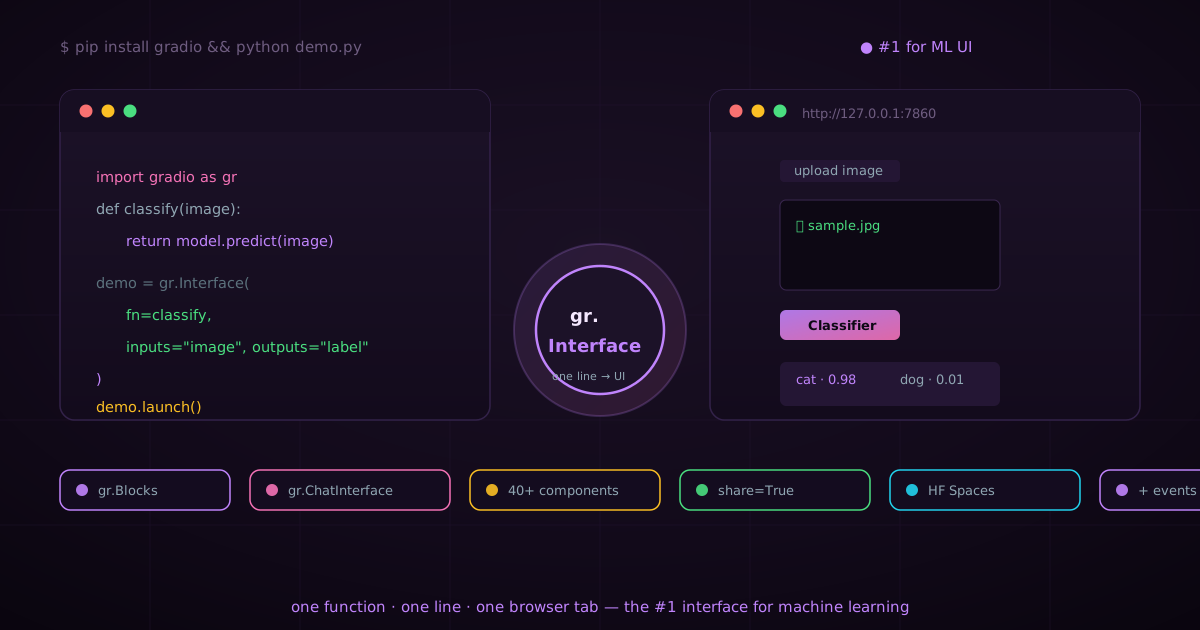
Gradio: the #1 interface for machine learning — one line between a model and the world
A model nobody can use is just a liability. Gradio is the interface layer that made machine learning usable: wrap any Python function in a browser UI with one line, from a single gr.Interface to full multi-page Blocks apps and ChatInterface LLM frontends — then share it with a public URL or deploy it to Hugging Face Spaces, the home of ML demos. Created by Abubakar Abid at Stanford and stewarded by Hugging Face, Gradio has become the default way the world touches AI. This is the complete tour.
tech · 17 min · 2026-09-13
Local AI is just a file and a program. Here is how to run it yourself
Running AI locally sounds like it needs a PhD and a $10,000 computer. It does not. Local AI is a model file on your disk and a program that runs it — no cloud, no API keys, no subscription. Here are the real building blocks and the four ways to run a model on your own machine, from a clickable app to pure code.
tech · 14 min · 2026-09-08